
Back to ArticlesBack

Join 50,000+ PM Professionals

Get expert PM insights, PMP prep tips, and earn PDUs with exclusive content delivered weekly.

MPUG - Master Project User GroupMPUG - Master Project User Group

From the author of Microsoft Project Do’s and Don’ts. Check out the NEW Do’s and Don’ts Bootcamp, which delivers Microsoft Project Management proficiency (and credibility) in just three hours of training!

In Part 1 of this article, we saw that the “Kanban Board” clearly shows what is completed, what is in progress, and what is not started. We also discussed that if your organization uses Agile techniques in managing projects, you will recognize the “Kanban Board” as a tool to help you and your management team manage workflow in projects.

Here are the steps to create a “Kanban Board:”

  1. Select the “Project” tab and then click on “Custom Fields.”
  2. Select an open text field, then click on the “Rename…” button to give the text field a unique name. I chose “Kanban Board” for consistency.

  1. Click on the “Formula…” button to enter the formula that will control the Kanban Board. Enter the formula as shown in the figure below. You may have to adjust the formula for your specific system. For example, some systems require a single quote rather than the double quote.

  1. Once the formula is entered, select “OK.” You now have the custom field needed for the “Kanban Board.”
  2. Insert your new “Kanban Board” field into the table of your choice. Once inserted, the formula should populate the field indicating their completion state.

6. Prepare a Group to organize the project by completion state. Select the “View” tab then from the “Group by:” dropdown list choose “New Group By…” and enter the information below into the Group Definition dialog.

7. Click on the “Save” button to save your new custom group.
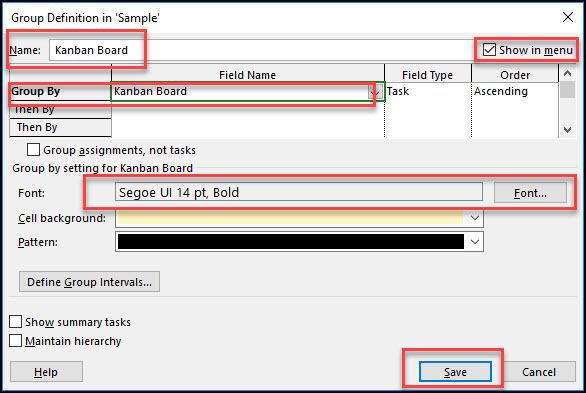
8. Create a new View to use the new field and group. Select the “View” tab and from the list of “Task Views” click on “More Views…”

9. Enter the information below into the new View Definition dialog.

10. Finally, test your new view by selecting the “Task” tab, then selecting your “Kanban Board” from the list of custom task views. It should look similar to the figure below.

If you wish to create a report based on the view, simply create a new table report using the “New Report” wizard in the “Report” tab and apply the “Kanban Board” group in the report’s Field List. Show all tasks in the outline level and you have the complete tool in Project.

Congratulations! In ten steps you have created a custom field containing a formula, a custom Group and a custom View to show off your new “Kanban Board.”

This article was originally published at https://winprojblog.blogspot.com/2018/05/dos-and-donts-use-kanban-board.html. Used with permission.

Get the full Do’s and Don’ts Bootcamp now!

Get Weekly PM Insights

Join 50,000+ PMs receiving updates on the latest PM methodologies, PDU opportunities, tool reviews, career tips, and member exclusives.

PMI ATP
PMI Authorized Training Partner
REP #4082

Learning Paths

PMP® TrainingCAPM® TrainingPgMP® TrainingPMI-ACP® TrainingMS ProjectMS PlannerMS TeamsJira

PM Resources

PDU TrackerLive WebinarsSalary CalculatorTool ComparisonsJob BoardKnowledge BasePM Glossary

Community

Discussion ForumStudy GroupsEvents Calendar

Follow Us

LinkedInYouTubeTwitterFacebook
MPUG Logo

© 2026 MPUG. All rights reserved.

TermsPrivacySitemap
Articles

Do’s and Don’ts: Use a Kanban Board! (Part 2)

From the author of Microsoft Project Do’s and Don’ts. Check out the NEW Do’s and Don’ts Bootcamp, which delivers Microsoft Project Management proficiency (and credibility) in just three hours of […]

2 min read
•over 7 years ago•Updated 14 days ago•
S
Sam HuffmanAuthor
Project Management
Microsoft Project
Best Practices
Productivity
S
Sam Huffman

Content Writer

Sam Huffman first gained insight into Microsoft Project while working as a member of the MS Project development and support team. He has maintained his depth of knowledge of MS Project with each release and is a leading authority in the use and features of MS Project, Project Server and Project Online. Since the early 1990's Sam has honed his instruction skills by delivering training programs to thousands every year. Sam is a frequent content contributor to the Microsoft Project User Group (MPUG) and speaks to groups often about MS Project, Enterprise Project Management and the discipline of Project Management. He was awarded Microsoft Most Valuable Professional from 2010-2017. Check out his blog on MS Project. The softcover version of my newest book Microsoft® Project Do’s and Don’ts is now available for purchase! It is portable, brief and to the point so you can find help when you need it. Through tips, best practices and examples it will help you jumpstart your project!

View all articles by Sam Huffman
Related Content

Continue Reading

Discover more insights and articles that complement your current reading

How Reserves Keep Projects Alive
Articles
4 min read

How Reserves Keep Projects Alive

Learn how project reserves protect your budget and schedule from unexpected risks, including when and how to use contingency, management, schedule, and cost reserves effectively.

R
Ronald B. Smith, MBA, PMP
10 days ago
Read
Why Platform Migrations Fail (And How to Land Yours Successfully)
Articles
4 min read

Why Platform Migrations Fail (And How to Land Yours Successfully)

Learn why platform migrations fail and how to land yours successfully using proven change management tactics for PMOs facing tool transitions like Project Online’s retirement.

T
The MPUG Community
13 days ago
Read
Beyond Project Online: Why Now Is the Time to Plan Your Move to Modern Portfolio Management and How We Can Help
Articles
5 min read

Beyond Project Online: Why Now Is the Time to Plan Your Move to Modern Portfolio Management and How We Can Help

Microsoft Project Online retires September 2026. Learn why now is the time to plan your transition to modern portfolio management and join our free webinar on January 28.

T
The MPUG Community
24 days ago
Explore All Articles
Read