
 First things first! At the start of any project, you need to decide how and with which tool you will manage your project. At BrightWork, our recommendation is that SharePoint is the best collaborative platform with which to manage a project.
For more experienced Project Managers, SharePoint will not have all the project planning capabilities they are looking for. Instead, Microsoft Project will be the tool of choice. And, for good reason. Microsoft Project is an incredible tool to manage your project schedule.
Most of the time, though, it’s really just the Project Manager who needs access to the MPP file regularly. Team members don’t need to be in MS Project on a day-to-day basis. Team members just need a place where they can find their work and provide a status update on their work. SharePoint is the perfect tool for that.
Even better, the two-way sync between SharePoint and Microsoft Project gives you the best of both worlds.
In the following article, I’d like to share with you two simple ways to sync your Microsoft Project Plan with your project management site in SharePoint:
- Sync an existing Microsoft Project Plan to a SharePoint site
- Use the Open with Project Feature in your existing SharePoint site
Sync an Existing Microsoft Project Plan to a New SharePoint Site
With this method, you will be creating a new SharePoint Team site with a Tasks List that is mapped to the MPP.
Step 1: When you are in the Microsoft Project file, navigate to File and click Save As.

Step 2: Under Save and Sync, you should select the option to Sync with SharePoint.

Step 3: On the right hand side, you will see some fields under Sync with SharePoint Tasks. Select Sync with New SharePoint Site, enter your Project Name, and add the URL of what will be the new team site (parent site) in SharePoint.

Step 4: Click Save.
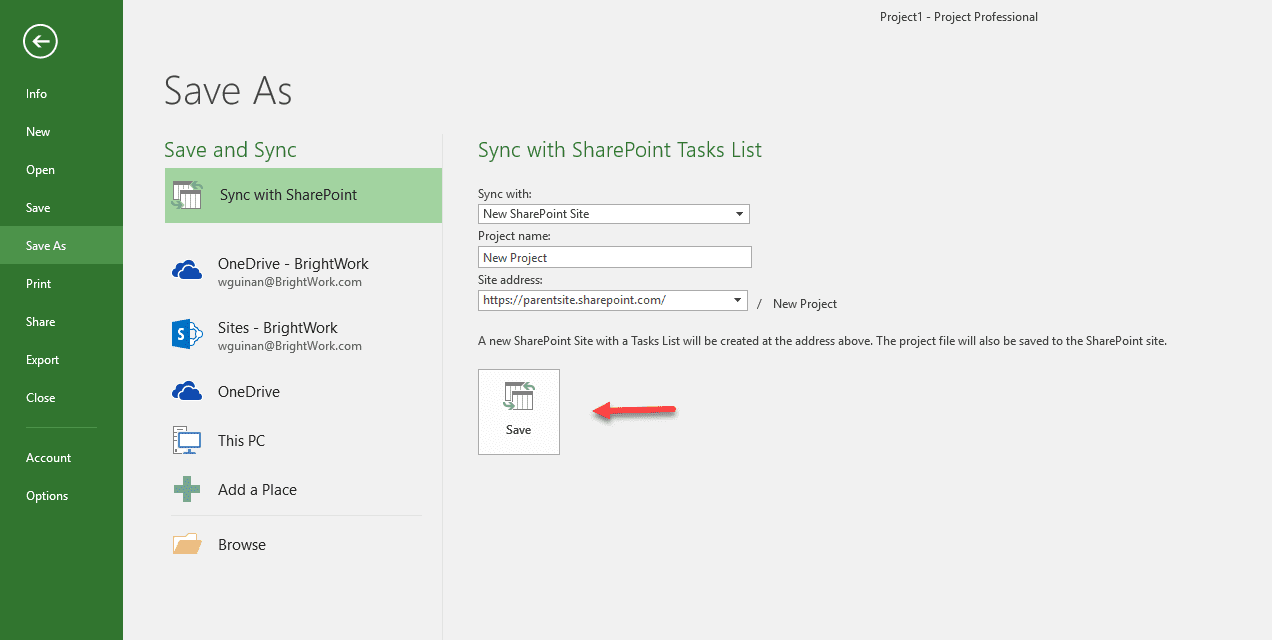
Clicking save will actually kick off the creation of a brand new team site in SharePoint. After the sync has completed, your browser should automatically open up the new SharePoint project site, along with a pre-populated SharePoint tasks list and timeline web part addition.
Use the “Open with Project” Capability in your Existing SharePoint Site
With this method, you will be creating a new MPP file that is mapped to an existing Tasks List in SharePoint.
Step 1: Navigate to the SharePoint Tasks List in your Team Site.

Step 2: From the ribbon, click Open with Project. This will open a MPP file containing the plan from your SharePoint tasks list.


Step 3: Make all the changes that you normally would in Microsoft Project.

Step 4: Click Save. Once you click save, you will see the sync kicking off.

The next time you or the team goes back to the SharePoint project site, they will see the SharePoint Tasks list (and all the corresponding Work Reports) reflecting any updates that have been made.

Likewise, any updates that the team may make in the SharePoint site will be reflected in the MPP the next time you open it.
A Few Considerations on the Microsoft Project to SharePoint Sync
1. Compatibility
Before you get started using the SharePoint to MS Project sync, there are some prerequisites you need to know about. Essentially, if you are using Server or one of the Foundation versions of SharePoint, you will require the corresponding version of Microsoft Project Professional Desktop for the sync to work. SharePoint Online requires Project Online in Office 365.
For example:
- SharePoint 2013 requires Project Professional 2013 Desktop
- SharePoint 2016 requires Project Professional 2016 Desktop
- SharePoint Online requires Project Online in Office 365
2. Default Field Mappings
The default field mappings you will get with the out-of-the-box sync are:
- Task Name
- Start date
- Finish (due) date
- % Complete
- Resource Name
- Predecessors
These fields represent the basic information you would likely need to track and report on work from the SharePoint project management site.
3. Location of the MPP File
You might think that the corresponding MPP file would logically be housed in the Document Library of your team site. However, it will actually be stored in the Site Assets section of your SharePoint site.
That’s actually a better place for it to be, as it is out of the way of most of the team members. When it’s hidden away in the Site Assets, it’s unlikely anyone will just stumble across it, or possibly make any changes to disrupt the sync. Team members only need to update their tasks from right within the SharePoint site. Those changes will be reflected in the MS Project file with no need for most to go near the Project file itself.
