Project managers are frequently requested to share the critical path for their projects. In this article we will review the key elements that need to be in place to display the critical path using Microsoft Project 2010 or 2013.
What
Developing the Critical Path within Microsoft Project (version 2010/2013) where the software automatically forecasts the end project’s end date
Why
This approach assists the project leader to focus on the critical tasks that will directly impact the end date of the project.
When
During the planning phase and throughout the project execution.
How
To maintain the critical path within Microsoft Project, the key steps involved include:
- Setting up the Options and non-working times for the project
- Maintain the start date of the project schedule
- Define resources (if they are used in the project schedule) and their non-working Times
- Entering the Work Breakdown Structure (WBS)
- Maintaining the tasks and their dependencies
- Assigning resources and their work effort estimates (if resources are used)
- Allow Microsoft Project calculate dates and durations without using constraints (use deadline dates if required)
Where Do I Start?
1. Start developing your timeline by maintaining the Start Date of you project. Navigate to the Project tab and select the Project Information icon.
2. Maintain the start date in the window that appears. Note that all task entered will default to this start date
Utilizing the Calendar Function
3. Navigate to the Project tab and select the Change Work Time icon

4. Maintain the calendars in your project schedule. Microsoft Project has 4 types of calendars
-
- Base calendars – Standard, 24-Hours and Night Shift
- Project calendars – Default work schedule for all tasks in a project (e.g. status holidays)
- Resource calendars – Individual resource calendars based on the settings in the Standard calendar, but can be modified to indicate vacations.
- Task calendars – customize the working times from the project calendar in a task calendar if you have tasks to be completed at different times
The order of priority is project calendar, resource calendar, and task calendar. MS Project calendars can give you tremendous flexibility in how you define your project. Just make sure you balance precision with simplicity and avoid making managing your Microsoft Project schedule a project in and of itself.
Ensure that you record statutory holidays and the time off for your resources to prevent potential scheduling conflicts

Identify the Key Milestones (Alignment with the Status Report)
5. Milestones highlight significant events in the project, such as Key Decisions, Progress, Key Events Usually these dates are represented by a task with zero (0) duration. It is a good idea to align the milestones in the project schedule with those in your weekly status report

Building Your Project Plan (a step above Excel)
6. Definition of Critical Path:
-
- The Critical Path consists of a series of tasks that must be completed on schedule for a project to finish on schedule. It is the series of tasks (or even a single task) that dictates the calculated finish date. Each task on the critical path is a critical task. That is, when the last task in the critical path is completed, the project is completed.
- Note that the finish date is the date that a project is scheduled to be completed. This date is based on the start date, duration, calendars, predecessor dates, task dependencies, and constraints of the project.
- If you plan to use Microsoft Project to calculate the critical path for you, then you need to establish relationships by linking all tasks in your schedule
- When you enter specific dates (like in Excel), you reduce Microsoft Project’s capability of calculating the critical path and create constraints (limitations) in your project scheule
- Consider using deadline dates instead of constraints
Avoid Constraints
7. A Constraint is a restriction either set on the start or finish date of a task. You can specify that a task must start on or finish no later than a particular date. Constraints can be flexible [not tied to a specific date] or inflexible [tied to a specific date].)
- Flexible
- As Late As Possible (ALAP) and As Soon As Possible (ASAP)
- Semi-Flexible
- Finish No Earlier Than (FNET) and Finish No Later Than (FNLT)
- Start No Earlier Than (SNET) and Start No Later Than (SNLT)
- Inflexible
- Must Finish On (MFO) and Must Start On (MSO)
Consider the Use of Deadline Dates
8. A Deadline is a target date indicating when you want a task to be completed. If the deadline date passes and the task is not completed, Microsoft Project displays an indicator. The advantage of deadlines is that they keep track of its finish date without locking the schedule. It also appears as a green downward arrow on the Gantt chart.

Build Relationships
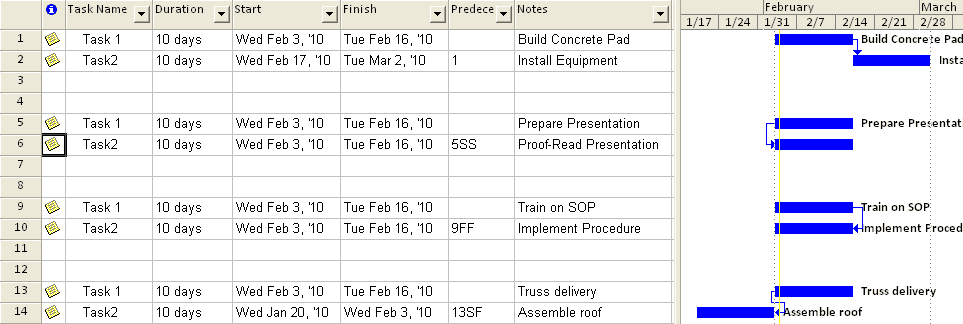
9. In Microsoft Project you can create Relationships between two or more tasks by linking them to create any one of the 4 kinds of task dependencies:
-
- Finish-to-start (FS)
- Start-to-start (SS)
- Finish-to-finish (FF)
- Start-to-finish (SF)
You may also add Lag Time or delay between tasks that have a dependency. For example, if you need a two-day delay between the finish of one task and the start of another, you can establish a finish-to-start dependency and then add 2 days in the Lag column. (E.g. 5FS+2 days)


10. Microsoft Project will have challenges determining the critical path when you enter constraints in your project schedule. Use the tasks relationships, duration and lag (Note: negative lag = lead) to create your task dates. Consider using deadline dates instead of constraints. Instead of setting specific dates for a task (like in Excel), consider assigning an As Soon As Possible (ASAP) constraint and enter a deadline date.
Tracking to Initial Plan
11. Tracking to Initial Plan
- In Microsoft Project, you have the ability to save a reference point against which you measure changes in your project
- Usually, this is done when you have developed a workable project schedule
- The Tracking Gantt is a useful tool to better understand impact to your project timelines
- Set the Baseline, by navigating to the Project tab and selecting the Set Baseline icon

- Set the baseline for the Entire Project or Selected tasks, as required

- After the baseline is set you can update the project schedule and appropriately escalate the issues and risks identified as a result of changes to timelines