Want to continue creating great Microsoft Project Schedules? Last time I shared three best practice “DO’s” to follow on scheduling. This time I’ll share three things to avoid.
DON’T Use the Start and Finish Columns
Microsoft Project is a scheduling tool with a true passion for dynamic information. In other words, it works best when you link tasks together and don’t force actual dates.
In an earlier article, I wrote about flaws in the use of Project. The use of the start and finish columns is a major flaw. And I see this happening with both first-time and veteran users of the product.
The way to see if a project schedule uses the start and finish columns excessively is by the blue (or red) calendar icon in the indicator column:
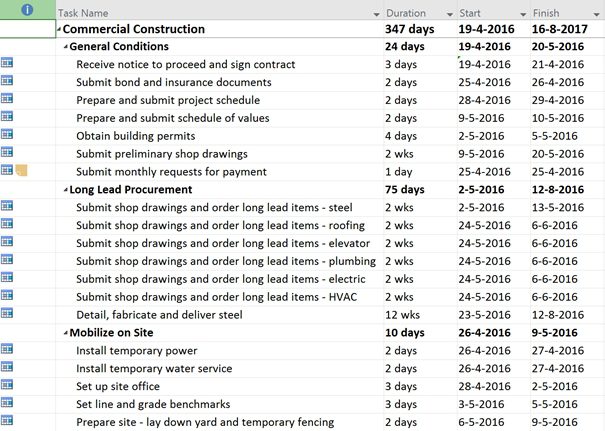
If almost all tasks have these calendars, you’re surely using the columns that set a constraint on either the start or finish dates.
How do you fix this? Add the “type” and the “constraint date” columns to any Gantt view you have and either delete the constraint date value or change the type to “as soon as possible” or “as late as possible.”

DON’T Mistake Work for Duration
A common mistake derived from miscommunication is taking duration for work or vice versa. Consider this short conversation between a project manager and a team member:
PM: “How much time will you need to finish the design?”
TM: “I guess I’ll need three weeks.”
Now will the PM consider the reply as three weeks of duration? Or will the team member need 120 hours of work for the design?
The conversation shouldn’t end with this single question, but rather contain at least two follow-up questions:
PM: “Three weeks of work or will you be done after three weeks?”
TM: “Oh, the work will take me maybe 24 hours.”
PM: “So why will it take you three weeks to finish it? Can I help to speed that up?”
TM: “I have some other unfinished business, but if Dave can help me out, I’ll have the design finished by next week.”
Asking the right questions to get a complete view is essential to get a solid and correct schedule.
DON’T Use Manually Scheduled Tasks in Combination with Work
It’s time to get a bit more technical now. Microsoft introduced “manually-scheduled” tasks in the 2010 version of Project.

This new feature gave project managers the option to generate early sketch versions of any schedule. But it’s not intended for use in a schedule that’s on its way.
Dan Renier did an excellent video presentation where he describes everything you need to know about the manually-scheduled functionality. A key feature of his presentation at the Project 2014 Conference in Anaheim is that the manually scheduled task won’t be suitable for any task that has an assignment.
As he explains in the presentation, the automatically scheduled tasks will keep the task type you assigned to it intact whereas the manually-scheduled task will throw it out the window and keep a “fixed duration” task type even where this hasn’t been applied.
A Bonus! DON’T Forget Murphy
Change will happen in your schedule! Be prepared and keep these three aspects of a project manager at the top of your toolbox:
- Communicate;
- Document; and
- Evaluate
Communicate
Keep an open door policy with your team members and other stakeholders, but don’t wait for them to come to you with issues or requests. Get a formal structure of frequent meetings with stakeholders in the project.
Document
Documentation is a tedious job, but someone needs to formalize decisions, and there needs to be a clear and uniform understanding of the current situation the project is in. If you document every scope change, issue and risk in the schedule, you come prepared when Murphy knocks on your door. And you can send that jerk on his way as soon as possible.
Evaluate
Once your project is done, get the team back in a room and openly evaluate how the project went. Thank them for their commitment and tell them if the project was a financial success. But also ask them how the next project would be even better and ask them to evaluate you as their project manager. That will help ensure both your team and you grow.
_________________________________________________________________________________________________________________
Have a “DON’T” best practice of your own? Share it in the comments below!
